

Maximising Battery Life on Windows Laptops: Tips and Settings

One of the challenges when using a laptop is managing your battery life, especially when you’re constantly on the go. Here are some practical tips and settings to help you extend your Windows laptop’s battery life, ensuring it lasts as long as you need it.

1. Adjust Power and Sleep Settings. Go to Settings > System > Power & Sleep to adjust your laptop’s power settings. Choose a power plan that balances performance with energy savings. For maximum battery life, select the Power Saver plan.

2. Lower Screen Brightness. The screen is one of the biggest battery drainers. Lower your screen brightness to a comfortable level. You can adjust this in Settings > System > Display or use the function keys on your keyboard.

3. Enable The Battery Saver Mode. Your Windows has a Battery Saving mode that can help limit the background activity and reduces visual effects. Here is how you can enable it, go to Settings > System > Battery and toggling on Battery Saver. You can also set it to turn on automatically at a specified battery level.

4. Turn Off Bluetooth and Wi-Fi When Not Needed. When your Bluetooth and Wi-Fi is on it can consume power even if it is not in use. It is a good idea to turn them off when you don’t need them. You can always toggle these settings from your taskbar or in Settings > Devices > Bluetooth & other devices and Settings > Network & Internet > Wi-Fi.

5. Close Unnecessary Background Apps. Background apps can drain battery life. Go to your Settings > Privacy > Background apps and turn off apps that you don’t need to run in the background.

6. Manage Startup Programs. Reduce those programs that startup automatically when you turb on your laptop. Open Task Manager (Ctrl + Shift + Esc), go to the Startup tab, and disable all the unnecessary programs.

7. Use Hibernate Instead of Sleep. Hibernate uses less power than sleep mode. To enable hibernation, go to Control Panel > Hardware and Sound > Power Options > Choose what the power buttons do and enable Hibernate.

8. Optimize Battery Usage by Apps. Check which apps are using the most battery. Go to Settings > System > Battery > Battery usage by app. You can manage background activity for these apps to save power.

9. Disable Visual Effects. Fancy animations and visual effects can consume battery power. Disable them by going to Settings > System > About > Advanced system settings > Performance Settings and selecting Adjust for best performance.

10. Keep Your Laptop Cool. Heat can reduce battery efficiency. Use your laptop on a hard surface to allow proper ventilation and ensure the cooling vents are not blocked. Clean the vents regularly to prevent dust buildup.

By implementing these tips, you can maximize the battery life of your Windows laptop, ensuring it remains operational for as long as possible, no matter where you are.

Shequila Adams | Digital Marketer
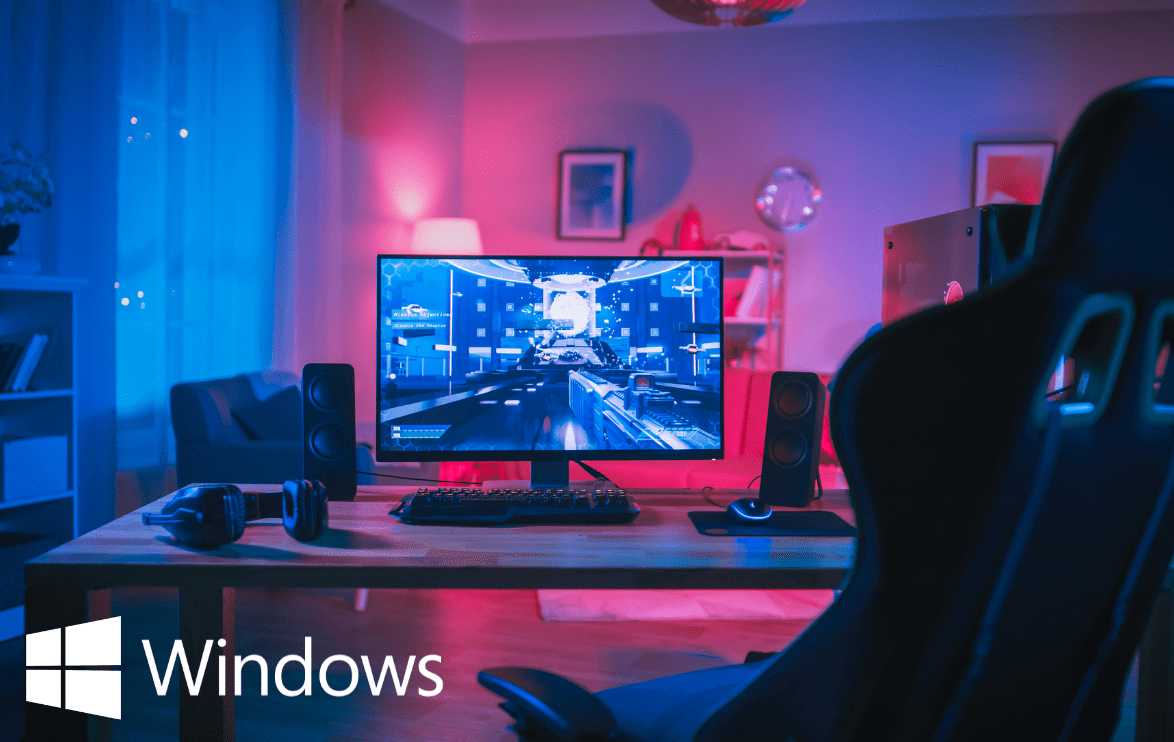
Level Up Your Gaming: Windows PC Optimization Tips

Gaming on your Windows laptop or desktop computer could potentially offer exceptional flexibility and performance. Even if you’re a casual gamer or a hardcore enthusiast! Optimising your PC can make a huge difference when it comes to your gaming experience. Let’s check out some hopefully helpful tips to get the most out of your Windows gaming apparatus.

1. Keep Your System Updated. Make sure your Windows operating system and all your drivers, especially the graphics drivers, are up to date. Keeping your system regularly updated can help fix bugs, upgrade the performance, and introduce newer features that can improve your gaming experience. Make use of a Windows update for system updates and tools such as NVIDIA GeForce Experience  and AMD Radeon Software for graphics drivers.

2. Adjust Graphics Settings. Game settings can be adjusted to balance performance and visual quality. Lowering settings like texture quality, shadows, and anti-aliasing can boost frame rates. Many games offer presets (low, medium, high, ultra) that can be tweaked according to your system’s capabilities.

3. Enable Game Mode. Windows 10 and 11 has a built-in feature “Game Mode” which prioritizes system resources for gaming. To enable your “Game Mode”, go to Settings > Gaming > Game Mode and toggle it on. This can help reduce background activity and improve game performance.

4. Optimize Power Settings. Make sure your computer is set to “high-performance mode”. Navigate to Control Panel > Hardware and Sound > Power Options and select High Performance. This setting will ensure that your CPU and GPU run at their maximum potential and reducing power-saving throttles.

5. Upgrade Hardware. If you’re experiencing poor performance, consider upgrading key components like your GPU, CPU, or adding more RAM. SSDs can also significantly reduce game load times compared to traditional HDDs.

6. Manage Background Processes. Close unnecessary background applications that consume resources. Use Task Manager (Ctrl + Shift + Esc) to see which processes are using CPU, memory, and GPU, and end tasks that aren’t needed while gaming.

7. Overclocking. For advanced users, overclocking your GPU or CPU can provide a performance boost. Use tools like MSI Afterburner for GPU overclocking or your motherboard’s BIOS for CPU adjustments. Be cautious, as overclocking can increase heat and reduce component lifespan if not managed properly.

8. Use Game Optimization Software. Software like Razer Cortex or AMD Radeon Software can help optimize your system settings and manage game performance. These tools can automate the process of tweaking settings for optimal performance.

9. Clean and Cool Your System. Make sure that your PC doesn’t have access dust and has a decent cooling system in place. Dust can end up clogging fans and vents, which can lead to overheating and throttling. Ensure you regularly clean your PC’s insides and maybe consider adding some additional fans or even upgrading to a better cooling solution if necessary.

10. Monitoring Performance. Making us of things like performance monitoring tools like MSI Afterburner or HWMonitor  to keep an eye on your system’s temperatures, clock speeds, and usage. This can help you identify bottlenecks and ensure your PC is running smoothly.

By following these tips, you can enhance your gaming experience on Windows, ensuring smooth gameplay and the best possible performance from your system.

Shequila Adams | Digital Marketer

Back to Top
Product has been added to your cart