
From Thrillers to Love Stories: The Ultimate Binge List for 2025 & ‘24

What’s your binge-watching personality? Are you the “just one more episode” type (but suddenly it’s 3 AM)? The “I need snacks, or I can’t focus” type? Or maybe the “I pretend I haven’t watched it, so my friends don’t judge me for re-watching it five times” type?

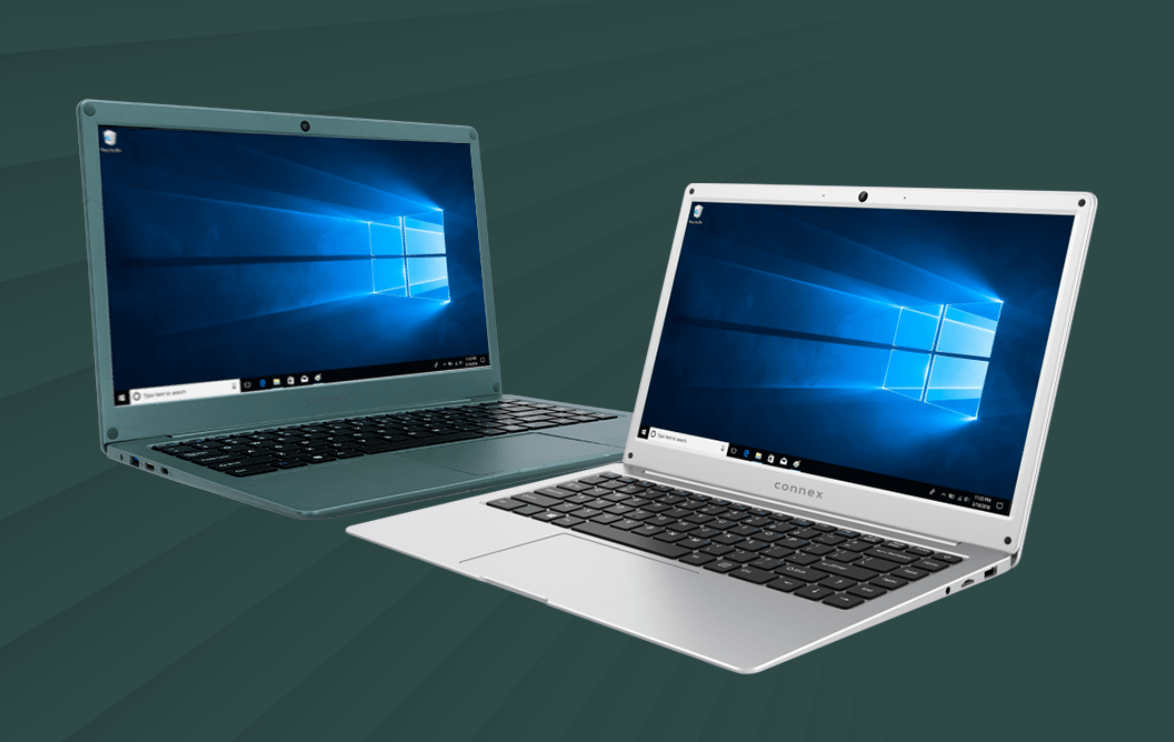
No matter which one you are, your Connex laptop is your ultimate companion for seamless streaming. And 2025 has already dropped some banger TV shows, from feel-good binge-worthy shows to some serious edge-of-your-seat thrillers.

So, charge up your affordable Windows laptop, make yourself comfy, and let’s jump into the best TV series of 2025 & ‘24


🎭 Drama That Hooks You from Episode One

Nothing like a little emotional trauma in the form of television to make you forget about your real-life problems, right?

🔥 APPLE CIDER VINEGAR (2025)

You know those people who swear lemon water cures everything? Imagine if they took it too far. This limited series proves that good intentions can sometimes turn into a whole mess of deception, scandal, and moral dilemmas.

🔥 FALLOUT (2024)

When life above ground gets too real, underground bunkers start looking like prime real estate. This show is a lesson in survival, absurdity, and how humanity finds a way to mess things up, again. Check out this blog.

🔥 BABY REINDEER (2024) A limited series that proves sometimes, the past refuses to stay in the past. Also, note to self be careful who you’re nice to, because some people take it wayyy too seriously.


😂 The Funniest TV Series of 2024 That Will Have You Cry-Laughing

Because life is too short to be serious all the time. These comedies will have you laughing out loud.

🤣 THE OFFICE 2.0 (2024)

AI is changing the workplace, but let’s be real here; how does AI deal with printer errors, passive-aggressive emails, and that one co-worker who still doesn’t know how to mute their mic on Zoom? This reboot is here to answer all the important questions.

🤣 RUNNING POINT (2024)

A party girl accidentally ends up running a professional basketball team. Does she have to constantly put out fires? Yip. Will she lose it at some point? Hmmm, yes!

🤣 NO GOOD DEED (2024)

Three desperate families fight over one house, convinced that owning it will magically solve all their problems. Spoiler alert: it doesn’t. In fact, it makes things much, much, much worse, and we get to watch it all unfold with popcorn in hand.


🚀 Sci-Fi & Fantasy That Will Blow Your Mind

Perfect for when real life is too boring and you’re eager to escape to worlds where robots, aliens, and time travel are all part of a normal Tuesday. Because let’s be honest, sometimes we just need a break from things like traffic, load shedding, and more.

🌌 IRONHEART (2025)

A young genius builds a super-suit, which is all fun and games until every villain, government agency, and morally questionable billionaire wants a piece of it. Note to self: 📝 Don’t post your high-tech gear on socials…

🌌 ALIEN: EARTH (2025)

Prequels are supposed to answer questions, but this one just makes you rethink deep space, survival instincts, and whether we should really be so excited about interstellar travel.

🌌 EYES OF WAKANDA (2025)

Wakandan warriors on a global mission to retrieve stolen Vibranium artifacts. Expect badass action sequences, breathtaking visuals, and villains who seriously underestimated Wakanda’s patience.


🕵️ The Most Suspenseful TV Shows That Will Keep You on Edge

Nothing like a good thriller to remind you to double-check your locks at night, and make sure no one is hiding under the bed.

🔪 A GOOD GIRL’S GUIDE TO MURDER (2025)

Some cases are better left unsolved, but of course, curiosity is a powerful thing. One determined woman, a potentially very sketchy past, and secrets people really don’t want exposed… what could go wrong?

🔪 DEADLY OBSESSION (2025)

A South African investigative crime series that will have you questioning everyone, bombastic side-eyeing your neighbours, and reconsidering all your life choices.

🔪 CONSTELLATION (2025)

An astronaut returns to Earth, but something feels… off. Is she losing her mind, or has reality been slightly altered in ways no one can explain? Either way, buckle up this one’s a mind-bender.


💖 Love Stories on Netflix That Give You All the Feels

For when you need something wholesome, emotional, and maybe just a little unrealistic, because no one in real life is delivering romantic monologues in the rain with a boom box above their head.

💞 ONE DAY (2024)

They meet once a year, but somehow, life always gets in the way. It’s either bad timing, fate playing a sick joke, or just an extreme level of procrastination. Either way, expect emotional damage and a desperate urge to text your ex.

💞 NOBODY WANTS THIS (2024)

An agnostic sex podcaster and a newly single rabbi fall for each other. If that sentence alone doesn’t scream absolute chaos, just wait until meddling families, conflicting beliefs, and awkward dinner conversations get thrown into the mix.

💞 MY LADY JANE (2025)

A queen, a crown, and an unfortunate number of assassination attempts. Turns out, falling in love is hard when people keep trying to kill you. A historical romance that proves love is a battlefield… literally.


Best Way to Watch These on Your Connex Laptop 🎧💻

USE AN AFFORDABLE WINDOWS LAPTOP

Streaming at its best, with seamless performance. Where to buy?


CONNECT TO FAST WI-FI

Because buffering ruins emotional moments.


USE GOOD HEADPHONES

To fully experience the suspense, romance, or ridiculousness. ANC is the way to go!


STOCK UP ON SNACKS

Because binge-watching is serious business, and it sucks on an empty stomach.


What Are YOU Watching?

The best part about binge-watching?

Maybe arguing about what’s worth watching and what’s over hyped. So, what’s the best show YOU’VE watched recently?

Drop it in the comments and help grow the watch lists! 🍿🔥

Shequila Adams | Digital Marketer
Side Hustle Success: Is Your Connex Laptop the Secret Ingredient? 🚀

So… It’s 7 PM. You have just completed a long day at work, but instead of going to lay on the couch and binging your favourite Netflix series, you decide to open your Connex laptop, grab a cup of rooibos tea, and work on your side hustle. Maybe you do freelance graphic designing, run an online drop shipping store, or writing the next great book. Whatever your hustle is, the possibilities are endless when you have the right tech by your side.

Now, you might be thinking, what makes a Connex laptop so special for side hustlers like you? Let’s take a closer look at how this affordable powerhouse can take your dream from just an idea to your next big win.


1. Built for Multitasking: Hustlers Have No Time to Waste

When you are busy balancing your full-time job, personal life, and that growing side hustle, multitasking becomes second nature. Luckily, Connex laptops are built to keep up with you. Switch between designing a website, managing social media marketing, and running Google searches, all without those irritating freezing screens.

Thanks to their processing power, you won’t have to sit through buffering moments, watching the spinning wheel of doom. You’ve got too much to do and no time to waste!


2. Portable and Lightweight: Hustle On-the-Go

Do you dream of working from your favourite local coffee shop or at home while you wait for your kid’s music class to finish? With its sleek, lightweight design, the Connex laptop is easy to carry wherever your hustle takes you.

Imagine typing out business ideas in the morning, replying to customer queries during lunch, and designing your brand logo at night, all from different spots. No need to be tied to an office (where it is sometimes challenging to get work done with all the distractions). With a Connex laptop, your workspace is wherever you want it to be.


3. Budget-Friendly, So You Can Invest More in Your Business

Starting a side hustle shouldn’t cost you an arm and a leg. Connex understands that you need affordable tech that doesn’t sacrifice overall quality. Whether you’re starting an online tutoring business or becoming a digital content creator, you’ll have extra cash to invest in tools, marketing, and products instead of splurging on expensive laptops.


4. Stay Connected, Collaborate, and Build Your Network

Every side hustle benefits from collaboration every now and then, whether you’re working with a graphic designer in Cape Town, a client in London, or a supplier in China. With easy-peasy Wi-Fi connectivity, your Connex laptop ensures that you can jump on virtual meetings, reply to emails, and keep up with your team or customers without breaking a sweat.


5. Battery Life: The Grind Doesn’t Stop

Ever had an idea strike you in the middle of the night, but your laptop battery is flat? You won’t have that problem with Connex laptops. With good battery life, you can keep hustling, brainstorming, and creating without interruptions. No frantically searching for a plug halfway through writing a proposal. Tip: Keep your laptop charged overnight, and you’ll be ready to conquer the day.


6. Tools That Adapt to Your Hustle

Your Connex laptop isn’t just a device, it’s basically your digital Swiss army knife. Need to run Excel sheets for budgeting your online store? Done. Writing scripts for your YouTube channel? Easy. Designing T-shirt mock-ups for your online shop? Sorted.

No matter the hustle, Connex laptops offer versatility and power in one affordable package. And if you ever feel stuck or overwhelmed, just remember: the biggest businesses in the world started with a simple idea and a laptop and willingness.


7. Focus Mode On: Eliminate Distractions and Get Things Done

Distractions are everywhere. Busy spaces, social media notifications, random cat videos, or that tempting WhatsApp chat can easily steal your focus. But the right laptop makes it easy to eliminate distractions. Create designated “work” profiles, use productivity apps, and make sure when you sit down at your Connex laptop, you’re in hustle mode, Or try out the pomodoro technique:


Ready to Take the Leap?

Your side hustle isn’t just a dream, it’s the key to financial independence, personal growth, creativity and confidence. With a budget-friendly Connex laptop, you’ve got the perfect partner to help you build that brand, sell that product, create that content or whatever you want to build.

🌟 Your Turn: What’s your current side hustle, or what side hustle are you thinking about starting? Drop your ideas in the comments and inspire others to get started on their journey!

Shequila Adams | Digital Marketer

Smart, Sleek, and Practical: The Connex Laptop Story

When you think about laptops, you probably imagine something functional, right? Something that can help you finish your work, stream your favourite series, or save you during those last-minute Zoom meetings. But, what if I told you that laptops can be all that and more, without breaking the bank? Enter the chat: Connex Laptops.

First impressions matter. That’s why Connex laptops are designed to look as good as they perform. With their lightweight build and slim profiles, these laptops are perfect for slipping into your bag and heading out for a busy day.

Imagine you are at your favourite coffee shop, casually pulling out your Connex laptop, and suddenly heads turn. Someone asks, “Is that a Connex?” and you reply with a confident, “Yes, it is.” Boom… instant cool points. 😎

Don’t be fooled by the sleek exterior because these laptops pack a punch where it counts. Whether you’re typing away on a work project, binge-watching the latest series, or editing photos from your weekend adventure, these laptops have the power to keep up.

They have fast processors, solid battery life, and all the essentials for modern living, they are the tech equivalent of a trusty sidekick: always there, always ready, and never letting you down. 🦸‍♂️

Let’s be honest: no one wants to spend hours setting up their laptop or figuring out complicated features. Connex keeps it simple. These laptops are built for everyone, whether you’re a student crushing assignment, a professional handling business, or just someone who loves to surf the web and stay connected.

And the best part is they’re budget friendly. Because why pay more when you can have all the features you need at a price that won’t leave you and your wallet crying? 💸

Who Are Connex Laptops For? Well, the short answer is… everyone!

  • Students: Say goodbye to late-night panics when your laptop doesn’t keep up with deadlines. Connex laptops are reliable and speedy, just like you need them to be.
  • Professionals: Whether it’s a slick presentation or back-to-back virtual meetings, these laptops have got your back (and your front-row seat at that next promotion).
  • Casual Users: Love watching movies or scrolling through social media? Connex laptops deliver crisp visuals and smooth performance for all your chill vibes.

These devices aren’t just about the hardware; it’s about the people who use them. Connex is for dreamers, doers, and everyone in between. By choosing these devices, you’re not just getting a laptop but, you’re joining a family of tech enthusiasts who value simplicity, practicality, and style. (Yes, we mean you, future Connex user!)

🖤💬 What’s your favourite feature in a laptop? Let us know in the comments and join the Connex conversation!

Shequila Adams | Digital Marketer
Mastering Keyboard Shortcuts: Become a Productivity Wizard 🧙‍♂️

When you are busy performing a task, do you ever dreadfully think to yourself: “There must be a faster, more efficient way to get this done.” I am sure that we have all been there at some point, spending precious time click-clicking when all we needed was keyboard shortcuts. Well, great news peeps, we’re about to drop some wisdom and help you become a keyboard shortcut wizard! 🪄✨

1. The Classic: Ctrl + C and Ctrl + V

We must start off with the basics! You guessed it; copying and pasting. It is the very first fundamental skill to learn in the art of shortcut mastery. Need to move text, images, or files? Just hit `Ctrl + C` to copy and `Ctrl + V` to paste. Boom, it’s like magic!

🎩 Bonus tip: Did you know that `Ctrl + X` cuts the text, so you don’t have to go back and delete it afterward? Talk about efficiency!

2. Ctrl + Z: The Instant “Oops!” Fixer

Have you ever made a mistake and wished you could turn back time? Well, `Ctrl + Z` might be your new best keyboard shortcut friend. This short cut will undo your last action, whether it’s deleting a whole paragraph or accidentally sending a half-written email to your boss. No time machines required (or tapping backspace a million times)!

🔄 Pro tip: Keep hitting `Ctrl + Z` to undo multiple steps. It’s like your very own reset button!

3. Alt + Tab: Swiftly Hop Between Apps

If you’re a multitasker (we see you out there with 20 tabs open and music playing in the background… somewhere), `Alt + Tab` is for you. This shortcut lets you hop between open windows without using your mouse. You’ll feel like a pro, effortlessly switching between work and that *ahem* “important” YouTube video you were watching.

💡 Fun fact: You can hold down `Alt` and keep tapping `Tab` to cycle through all your open programs quickly!

4. Ctrl + Shift + T: The Tab Saver

Ever closed a tab on your browser and immediately regretted it? Panic no more! `Ctrl + Shift + T` will reopen the last tab you closed. It’s like pulling off a last-second rescue mission. 🎯

👩‍🚀 Shortcut pro move: Keep pressing this combo, and it’ll keep reopening all your recently closed tabs. You’ll never lose an important cat video again!

5. Windows Key + D: Instant Desktop View

Need to clear all those open windows and get a quick view of your desktop? Hit `Windows Key + D` and boom, all your windows will minimize, revealing your lovely desktop wallpaper (or that cluttered mess of icons). Hit it again, and everything comes back like magic. 💨

🌟 Pro tip: Use this if you want to quickly close that solitaire game you were busy with whenever your boss approaches you 😉

6. Windows Key + L: Lock Your Keyboard Instantly

Need to step away from your desk but don’t want anyone snooping around on your computer? `Windows Key + L` is your go-to! This shortcut locks your screen instantly, protecting your work from prying eyes (and those pranksters that change your wallpaper or rotate when all we needed was keyboard shortcuts. your screen, now having to figure out how to unscramble your desktop). 🔒

7. Windows Key + V: Clipboard History

Do you copy and paste like a champion? Here’s a trick for you! `Windows Key + V` opens up your clipboard history, letting you access the last few things you copied. No more re-copying that link you had from 5 minutes ago! 🗒️

📋 Pro tip: Clipboard history keeps track of your copied items even after you shut down, so you can come back to them later. Extra pro tip: If you must copy and paste multiple things, you can copy them all, then go to where it needs to be pasted one by one and it will all be there in your clipboard ready to be pasted!

 8. Windows Key + . : Your Emoji Shortcut!

Want to express yourself with a little more flair? Just hit `Windows Key + .` and boom! The emoji keyboard appears, and you can add all the 😎🔥🎉 your heart desires. This works for symbols too! So next time words aren’t enough, throw in a little emoji magic.

9. Ctrl + F: The Search Party

This one’s a lifesaver when you’re trying to find something specific in a sea of text – just press `Ctrl + F`, type in what you’re looking for, and voilà! You’ll be taken directly to that word or phrase without having to scroll endlessly.

🔍 Fun fact: You can use this in browsers, documents, and more, any time you’re trying to find a needle in the haystack!

10. Ctrl + Shift + Esc: Task Manager Shortcut

Is your computer acting sluggish, or is a program being uncooperative? Open the Task Manager instantly with `Ctrl + Shift + Esc`. No need to go searching for it in menus, this shortcut is like calling in the tech cavalry! ⚔️

11. Alt + F4: The Ultimate Exit

Need to close a program quickly? `Alt + F4` is your exit strategy! This one shuts down the current window or program you’re using. Just be careful, don’t accidentally use it while you’re working on something important (unless you’re ready to call it a day!).

Wrap Up: Shortcuts = Big Wins

There you have it! With these keyboard shortcuts, you’re not just saving time, but you’re leveling up your productivity game. Who needs a mouse when you’ve got keyboard wizardry on your side? 🧙‍♀️

So, whether you’re working on a Connex laptop or any other device, these shortcuts will keep you flying through tasks like a pro. Give them a try and watch your workday (or gaming sessions!) get a whole lot smoother.

Happy short-cutting! 💡 Is there a shortcut that saves you on the daily that we didn’t mention here? Drop it in the comments and share the magic with everyone!

Shequila Adams | Digital Marketer

Maximising Battery Life on Windows Laptops: Tips and Settings

One of the challenges when using a laptop is managing your battery life, especially when you’re constantly on the go. Here are some practical tips and settings to help you extend your Windows laptop’s battery life, ensuring it lasts as long as you need it.

1. Adjust Power and Sleep Settings. Go to Settings > System > Power & Sleep to adjust your laptop’s power settings. Choose a power plan that balances performance with energy savings. For maximum battery life, select the Power Saver plan.

2. Lower Screen Brightness. The screen is one of the biggest battery drainers. Lower your screen brightness to a comfortable level. You can adjust this in Settings > System > Display or use the function keys on your keyboard.

3. Enable The Battery Saver Mode. Your Windows has a Battery Saving mode that can help limit the background activity and reduces visual effects. Here is how you can enable it, go to Settings > System > Battery and toggling on Battery Saver. You can also set it to turn on automatically at a specified battery level.

4. Turn Off Bluetooth and Wi-Fi When Not Needed. When your Bluetooth and Wi-Fi is on it can consume power even if it is not in use. It is a good idea to turn them off when you don’t need them. You can always toggle these settings from your taskbar or in Settings > Devices > Bluetooth & other devices and Settings > Network & Internet > Wi-Fi.

5. Close Unnecessary Background Apps. Background apps can drain battery life. Go to your Settings > Privacy > Background apps and turn off apps that you don’t need to run in the background.

6. Manage Startup Programs. Reduce those programs that startup automatically when you turb on your laptop. Open Task Manager (Ctrl + Shift + Esc), go to the Startup tab, and disable all the unnecessary programs.

7. Use Hibernate Instead of Sleep. Hibernate uses less power than sleep mode. To enable hibernation, go to Control Panel > Hardware and Sound > Power Options > Choose what the power buttons do and enable Hibernate.

8. Optimize Battery Usage by Apps. Check which apps are using the most battery. Go to Settings > System > Battery > Battery usage by app. You can manage background activity for these apps to save power.

9. Disable Visual Effects. Fancy animations and visual effects can consume battery power. Disable them by going to Settings > System > About > Advanced system settings > Performance Settings and selecting Adjust for best performance.

10. Keep Your Laptop Cool. Heat can reduce battery efficiency. Use your laptop on a hard surface to allow proper ventilation and ensure the cooling vents are not blocked. Clean the vents regularly to prevent dust buildup.

By implementing these tips, you can maximize the battery life of your Windows laptop, ensuring it remains operational for as long as possible, no matter where you are.

Shequila Adams | Digital Marketer

Level Up Your Gaming: Windows PC Optimization Tips

Gaming on your Windows laptop or desktop computer could potentially offer exceptional flexibility and performance. Even if you’re a casual gamer or a hardcore enthusiast! Optimising your PC can make a huge difference when it comes to your gaming experience. Let’s check out some hopefully helpful tips to get the most out of your Windows gaming apparatus.

1. Keep Your System Updated. Make sure your Windows operating system and all your drivers, especially the graphics drivers, are up to date. Keeping your system regularly updated can help fix bugs, upgrade the performance, and introduce newer features that can improve your gaming experience. Make use of a Windows update for system updates and tools such as NVIDIA GeForce Experience  and AMD Radeon Software for graphics drivers.

2. Adjust Graphics Settings. Game settings can be adjusted to balance performance and visual quality. Lowering settings like texture quality, shadows, and anti-aliasing can boost frame rates. Many games offer presets (low, medium, high, ultra) that can be tweaked according to your system’s capabilities.

3. Enable Game Mode. Windows 10 and 11 has a built-in feature “Game Mode” which prioritizes system resources for gaming. To enable your “Game Mode”, go to Settings > Gaming > Game Mode and toggle it on. This can help reduce background activity and improve game performance.

4. Optimize Power Settings. Make sure your computer is set to “high-performance mode”. Navigate to Control Panel > Hardware and Sound > Power Options and select High Performance. This setting will ensure that your CPU and GPU run at their maximum potential and reducing power-saving throttles.

5. Upgrade Hardware. If you’re experiencing poor performance, consider upgrading key components like your GPU, CPU, or adding more RAM. SSDs can also significantly reduce game load times compared to traditional HDDs.

6. Manage Background Processes. Close unnecessary background applications that consume resources. Use Task Manager (Ctrl + Shift + Esc) to see which processes are using CPU, memory, and GPU, and end tasks that aren’t needed while gaming.

7. Overclocking. For advanced users, overclocking your GPU or CPU can provide a performance boost. Use tools like MSI Afterburner for GPU overclocking or your motherboard’s BIOS for CPU adjustments. Be cautious, as overclocking can increase heat and reduce component lifespan if not managed properly.

8. Use Game Optimization Software. Software like Razer Cortex or AMD Radeon Software can help optimize your system settings and manage game performance. These tools can automate the process of tweaking settings for optimal performance.

9. Clean and Cool Your System. Make sure that your PC doesn’t have access dust and has a decent cooling system in place. Dust can end up clogging fans and vents, which can lead to overheating and throttling. Ensure you regularly clean your PC’s insides and maybe consider adding some additional fans or even upgrading to a better cooling solution if necessary.

10. Monitoring Performance. Making us of things like performance monitoring tools like MSI Afterburner or HWMonitor  to keep an eye on your system’s temperatures, clock speeds, and usage. This can help you identify bottlenecks and ensure your PC is running smoothly.

By following these tips, you can enhance your gaming experience on Windows, ensuring smooth gameplay and the best possible performance from your system.

Shequila Adams | Digital Marketer

Making The Most of Microsoft Teams Planner

Microsoft Teams Planner is a great tool for students to help them stay organized and on top of their tasks. With its easy-to-use interface, students can create and manage their to-do lists, set deadlines, and collaborate with classmates. Here are some tips on how to use Microsoft Teams Planner to help with your student tasks this year. 

  1. Create a new plan for each class: To keep your tasks organized, it’s a good idea to create a separate plan for each class you’re taking. This way, you can easily switch between plans and focus on the tasks that are relevant to that class. 
  1. Use buckets to categorize your tasks: Buckets allow you to group related tasks together, which can make it easier to manage your to-do list. For example, you could create a bucket for homework, a bucket for group projects, and a bucket for exams. 
  1. Assign tasks to yourself and classmates: With Microsoft Teams Planner, you can assign tasks to yourself or to classmates. This feature is great for group projects, as it allows you to keep track of who is responsible for what. 
  1. Set deadlines: One of the most important aspects of staying organized is setting deadlines for your tasks. With Microsoft Teams Planner, you can easily set a due date for each task and get reminders when the deadline is approaching. 
  1. Use the calendar view: The calendar view in Microsoft Teams Planner allows you to see all of your tasks in a calendar format. This can be helpful for visualizing when tasks are due and making sure you have enough time to complete them. 
  1. Use the Chats Feature: The chat feature on the planner is a great way to collaborate with classmates on group projects. You can ask questions, share ideas, and keep everyone informed about the status of the project. 

By using these tips, you can make the most of Microsoft Teams Planner and stay organized and on top of your tasks throughout the school year. Whether you’re working on homework, group projects, or preparing for exams, Microsoft Teams Planner can help you stay on track and achieve your goals. 

Connex Laptop

Work, Study, Stream Anywhere 

Thanks to Covid and the 2020 pandemic, huge adaptions were made to the way that we work and study. All things online and working from home became a reality overnight to ensure that we still keep systems running. However, it is now two years later, and the masses have agreed that a hybrid or work-from-home model is best. It is for these reasons that we feel our Connex Devices must allow you to work, study, and stream anywhere. 

Work, Study and Stream Anywhere

Work and Study Models 

Now more than ever, we have had to adopt the mentality that we should be able to set up and work or study from wherever we are. We all know that we have had study-from-home models like those offered by UNISA, and more recently other varsities too. Office spaces have now taken on a similar approach. With that being said, all of our devices need to be adaptable. It is no longer a case of having all your equipment fixed at the office, but more a case that all of our devices need to be portable. 

Online Learning Made Easy

There is however a resounding issue with the hybrid, or full-time remote working models. This issue is that people tend to blur the line between their work and their private time. Some people find themselves never switching off and making themselves constantly available due to their office being at home. It is so important to create a boundary between work and social, especially when you are not in an office, or classroom environment. 

Equip Yourself the Right Way 

Whether you are working or studying, it is so important to be equipped with the right devices. The last thing you want is to either lose your work or not be able to do your job properly. To appeal to your needs, we at Connex Devices we have a plethora of laptops, touch devices, projectors, and projector screens for you to choose from. Whether it be for work, varsity, or personal use we have a Connex Device to suit you. 

Back to Top
Product has been added to your cart